Devtools
See which tools are on for the current page and what the cursor will do for each, run them from a form made from their schema, and watch a timeline of every call, yours or a real agent's.
@webmcp-agents/devtools is a panel for your page in development. It lists every tool that is on and what the cursor
will do for it, lets you play the agent with a form made from each tool’s schema, and records every call, yours or a
real agent’s. Open it with the button in the bottom-right corner, or Alt+Shift+A.
A complete example
There is nothing to add: the highlighted provider installs the panel whenever the app runs in development (vite dev,
next dev, astro dev), wired to its cursor. It comes with @webmcp-agents/react, and a production build has no
devtools code at all: the provider’s import() of it sits behind process.env.NODE_ENV === "development", which your
bundler replaces.
import { AgentChat } from "@webmcp-agents/chat";
import { WebAgentsProvider } from "@webmcp-agents/react";
import { StrictMode } from "react";
import { createRoot } from "react-dom/client";

import "./index.css";
import "@webmcp-agents/core/cursor.css";
import "@webmcp-agents/chat/chat.css";
import { shopper } from "@/agents";
import { tools } from "@/tools";
import { App } from "./App";

createRoot(document.getElementById("root")!).render(
  <StrictMode>
    <WebAgentsProvider tools={tools}>
      <App />
      <AgentChat
        agent={shopper}
        // In development the provider's devtools launcher has
        // the other corner.
        position={import.meta.env.DEV ? "bottom-left" : "bottom-right"}
      />
    </WebAgentsProvider>
  </StrictMode>,
);
"use client";
import { AgentChat } from "@webmcp-agents/chat";
import { WebAgentsProvider } from "@webmcp-agents/react";
import type { ReactNode } from "react";
import "@webmcp-agents/chat/chat.css";
import { shopper } from "@/agents";
import { tools } from "@/tools";
const DEV = process.env.NODE_ENV === "development";
export function Providers({ children }: { children: ReactNode }) {
return (
<WebAgentsProvider tools={tools}>
{children}
<AgentChat
agent={shopper}
// In development the provider's devtools launcher has
// the other corner.
position={DEV ? "bottom-left" : "bottom-right"}
/>
</WebAgentsProvider>
);
}import { AgentChat } from "@webmcp-agents/chat";
import { WebAgentsProvider } from "@webmcp-agents/react";
import type { ReactNode } from "react";
import "@webmcp-agents/chat/chat.css";
import { shopper } from "@/agents";
import { tools } from "@/tools";
const DEV = import.meta.env.DEV;
export function Providers({ children }: { children: ReactNode }) {
return (
<WebAgentsProvider tools={tools}>
{children}
<AgentChat
agent={shopper}
// In development the provider's devtools launcher has
// the other corner.
position={DEV ? "bottom-left" : "bottom-right"}
/>
</WebAgentsProvider>
);
}import { AgentChat } from "@webmcp-agents/chat";
import { WebAgentsProvider } from "@webmcp-agents/react";
import type { ReactNode } from "react";
import "@webmcp-agents/chat/chat.css";
import { shopper } from "@/agents";
import { tools } from "@/tools";
const DEV = import.meta.env.DEV;
export function Providers({ children }: { children: ReactNode }) {
return (
<WebAgentsProvider tools={tools}>
{children}
<AgentChat
agent={shopper}
// In development the provider's devtools launcher has
// the other corner.
position={DEV ? "bottom-left" : "bottom-right"}
/>
</WebAgentsProvider>
);
}The panel lives in a shadow root, so no CSS leaks either way, and its host carries data-web-agents-ui, so using it
never makes the cursor get out of the way. Tests get no panel: under NODE_ENV=test (Vitest, Jest) the provider
leaves it out, so it never shows up among your queries.
What the Tools tab shows
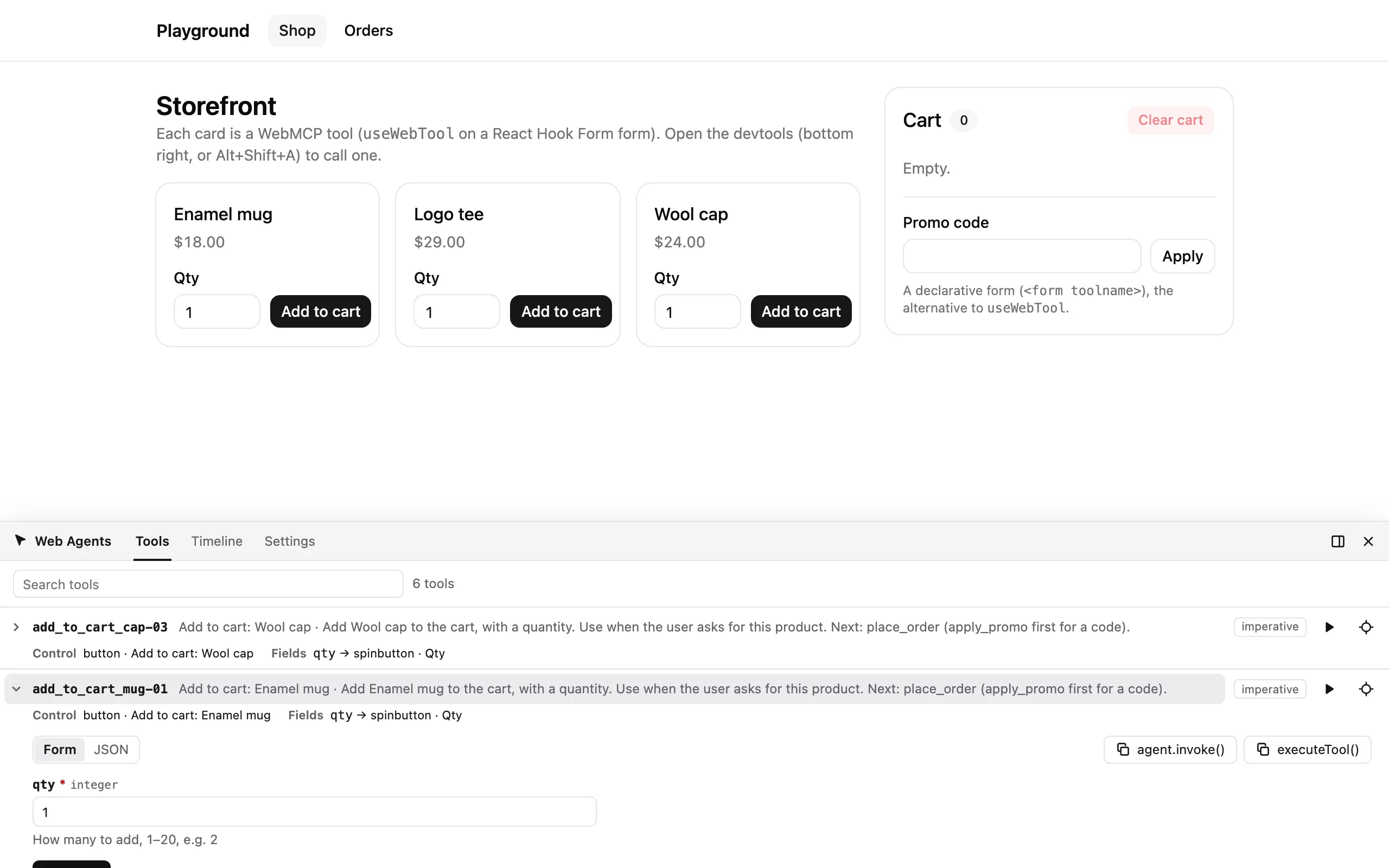
Every tool that is registered, refreshed as tools, the URL and the page change. Under each tool’s name, what the cursor will do for it, so nobody has to guess:
| Line | Shows | For example |
|---|---|---|
| Control | The control the cursor goes to, as a screen reader names it. | button · Add to cart, 3 matches, none: runs unseen, none: confirmation fails, depends on the call |
| Fields | Each parameter, and the field it will be typed into. | quantity → spinbutton · Quantity, cabin → not typed |
| Match | Where a catalog tool is on, and whether the current path fits. | /orders, /orders/:id |
| Flags | A badge per flag, and one for a tool that needs confirmation. | read-only, destructive, external |
A warning marks a confirm-gated tool that would fail: nothing to click, or several controls with its name
(Confirm before it runs). A catalog tool whose match
does not fit is listed off here, with its Run disabled. Locate scrolls to a tool’s control and flashes it.
Runner, Timeline, Settings
- Runner. A form made from the tool’s JSON Schema (strings, enums, dates, numbers, booleans, nested objects and
arrays), with a raw JSON fallback. Run with
⌘/Ctrl+Enter, and copy the call asagent.invoke(…)code. - Timeline. Newest first: the arguments, the fields the cursor typed, “waiting for you” while a tool is parked, the result or error with its code, a duration bar, a marker where you took over from the cursor, and Re-run.
- Settings. The dock’s position and size, and the cursor’s spotlight and yield-to-user switches. Saved in
localStorage.
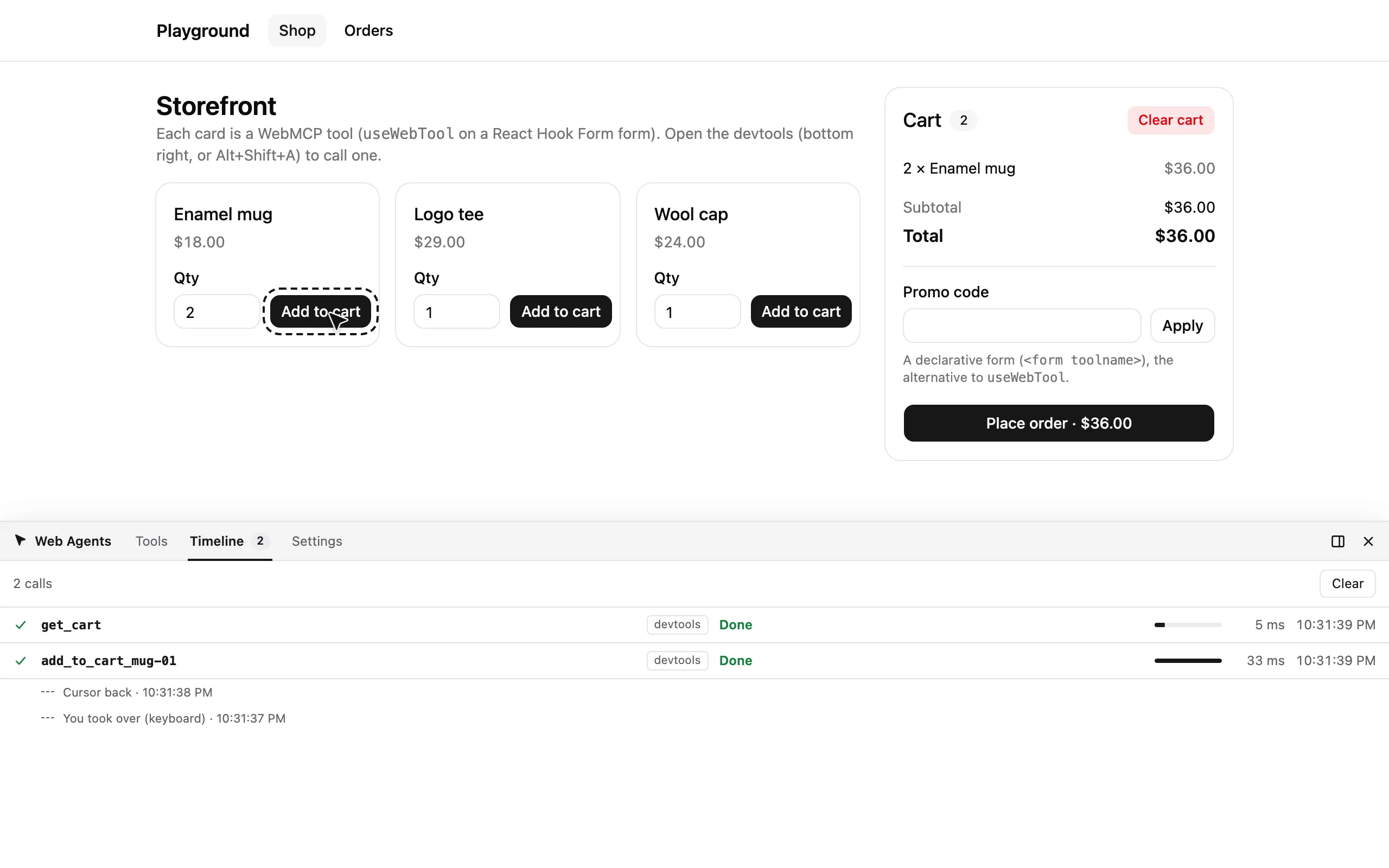
The cursor switches drive the provider’s cursor. A page without the provider (built on createWebAgents, as in
No framework) installs the panel itself with installWebAgentsDevtools(), after
createWebAgents; the switches then drive that cursor.
Place it yourself
To choose where and when the panel shows (in production too, or as a tab in TanStack Devtools), turn the provider’s off and render the component inside it:
import { WebAgentsDevtools } from "@webmcp-agents/devtools/react";

<WebAgentsProvider tools={tools} devtools={false}>
  {children}
  <WebAgentsDevtools />
</WebAgentsProvider>
Install @webmcp-agents/devtools yourself for this, and keep it behind your own development check with a lazy
import() unless you want it in production. With TanStack Devtools, webAgentsDevtoolsPlugin() from the same entry
adds the panel as a “Web Agents” tab. Either way its Settings drive the provider’s cursor.
From the console
The devtools put agent on window:
await agent.list();
await agent.invoke("add_to_cart", { size: "L", quantity: 3 });
agent.invoke(name, args) calls a tool by name, the way an agent would, and resolves to its answer. Calls made this way
show on the Timeline too. End-to-end tests drive tools the same way: the example apps’ Playwright tests do.
Limits
- Two calls of the same tool at once can mix their fills on the Timeline: agent events carry no call id.
- For a real agent’s call, the Timeline shows the fields the cursor typed, not the agent’s arguments.
- Cancel stops a run started from the panel everywhere, but another agent’s call only with the polyfill: native Chrome lets only the caller cancel.
- The hotkey is real keyboard input, so pressing it makes the cursor get out of the way for a moment. In a scripted check, call tools about a second after it.
Try it
Open /orders, press Alt+Shift+A, and find list_orders: Match shows /orders and that it fits. Expand it,
set limit to 1 and press Run: the answer appears under the form and on the Timeline. Go back to /: the tool is
listed off here.
Options you’ll use most
The provider’s devtools prop: false turns the panel off, an object configures it (still in development only).
<WebAgentsProvider tools={tools} devtools={{ initialOpen: true }}>devtools option |
What it is for |
|---|---|
initialOpen |
Open the panel on load. Default false. |
hotkey |
The shortcut that toggles it. Default "Alt+Shift+A"; false for none. |
initialSettings |
Settings to start from, below what the person saved: { dock: "right" }, { size: 420 }. |
eventClient |
Post to TanStack Devtools’ event bus. Default true. |
Every option: <WebAgentsProvider devtools>,
installWebAgentsDevtools and
<WebAgentsDevtools>.
Next
That is the whole path. From here, learn why it works and what else the packages do: